> ## Documentation Index
> Fetch the complete documentation index at: https://docs.launchblitz.ai/llms.txt
> Use this file to discover all available pages before exploring further.
# Create automation from template
> Start a Scrapist graph from a template and customize it.
Templates are prebuilt graphs (curated/admin-owned) that you can clone into your own account and then customize.
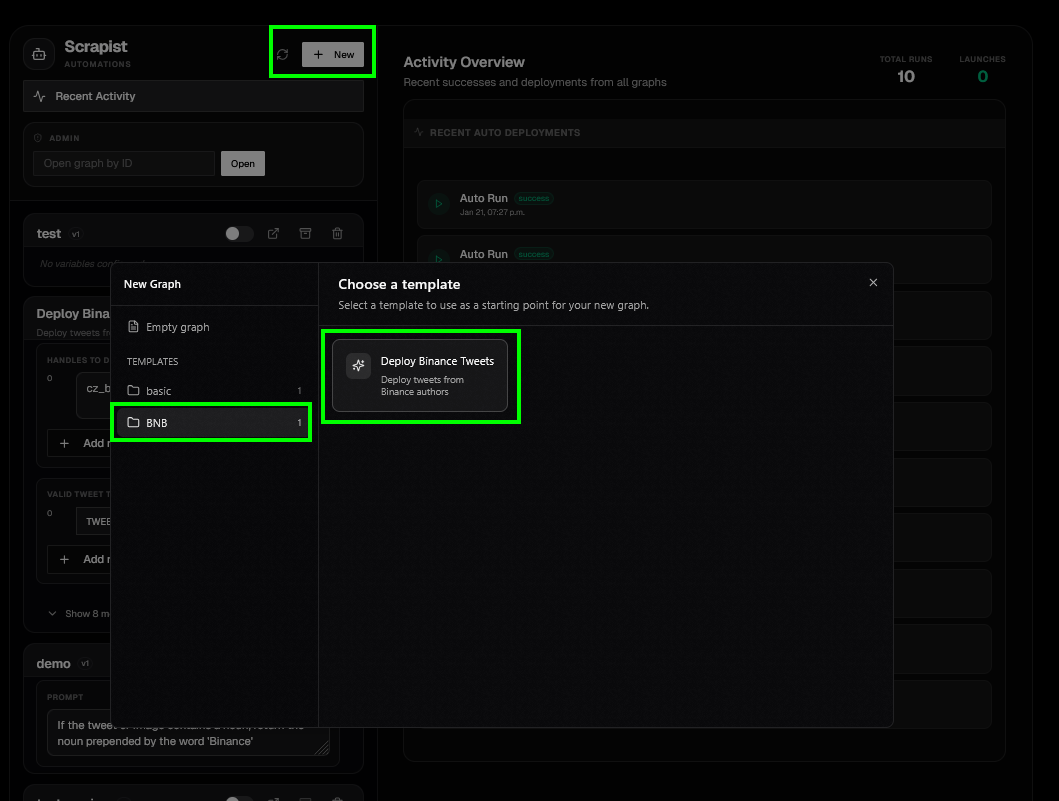 ## Picking a template
1. Go to `Secure → Automate` (Scrapist dashboard).
2. Click **New**.
3. Choose a template from the list.
Templates may be organized into folders/categories. Pick the closest match to what you want to automate, then refine it.
## Configuring variables
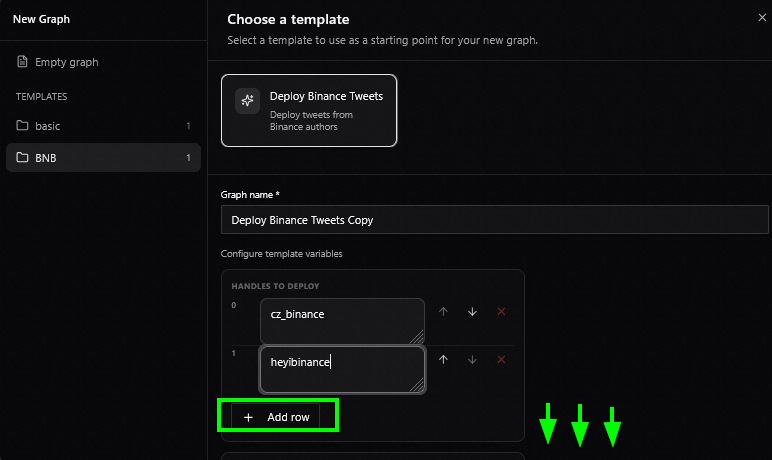
Templates can define **graph variables**. Some variables are marked **Instance exposed** (meaning they’re intended for configuration from the dashboard and in tests).
When creating from a template:
* You’ll be prompted to fill in **instance-exposed variables**.
* Those values become the initial defaults for your new graph version.
After creation, you can still adjust variable defaults from the dashboard:
1. Find the automation card.
2. Edit variable values.
3. Click **Save Changes**.
Tip: Variable editing is disabled while an instance is Active to avoid changing a live automation mid-run.
## Picking a template
1. Go to `Secure → Automate` (Scrapist dashboard).
2. Click **New**.
3. Choose a template from the list.
Templates may be organized into folders/categories. Pick the closest match to what you want to automate, then refine it.
## Configuring variables
Templates can define **graph variables**. Some variables are marked **Instance exposed** (meaning they’re intended for configuration from the dashboard and in tests).
When creating from a template:
* You’ll be prompted to fill in **instance-exposed variables**.
* Those values become the initial defaults for your new graph version.
After creation, you can still adjust variable defaults from the dashboard:
1. Find the automation card.
2. Edit variable values.
3. Click **Save Changes**.
Tip: Variable editing is disabled while an instance is Active to avoid changing a live automation mid-run.
 ## Activating/deactivating
An automation becomes live when its instance is **Active**.
From the dashboard card:
* Toggle the switch **On** to activate.
* If no instance exists yet, Scrapist creates one automatically first.
* Toggle **Off** to deactivate.
If you want to archive an instance:
1. Deactivate it.
2. Archive it (so it moves into the archived list).
## Opening in expanded view
The dashboard is for quick configuration and instance control. For full editing:
1. Click the **open editor** icon on the automation card (or open the graph by ID).
2. This takes you to `/secure/automate/[graph_id]`, the full graph editor.
Next: [Create automation from scratch](/scrapist/create-from-scratch).
## Activating/deactivating
An automation becomes live when its instance is **Active**.
From the dashboard card:
* Toggle the switch **On** to activate.
* If no instance exists yet, Scrapist creates one automatically first.
* Toggle **Off** to deactivate.
If you want to archive an instance:
1. Deactivate it.
2. Archive it (so it moves into the archived list).
## Opening in expanded view
The dashboard is for quick configuration and instance control. For full editing:
1. Click the **open editor** icon on the automation card (or open the graph by ID).
2. This takes you to `/secure/automate/[graph_id]`, the full graph editor.
Next: [Create automation from scratch](/scrapist/create-from-scratch).